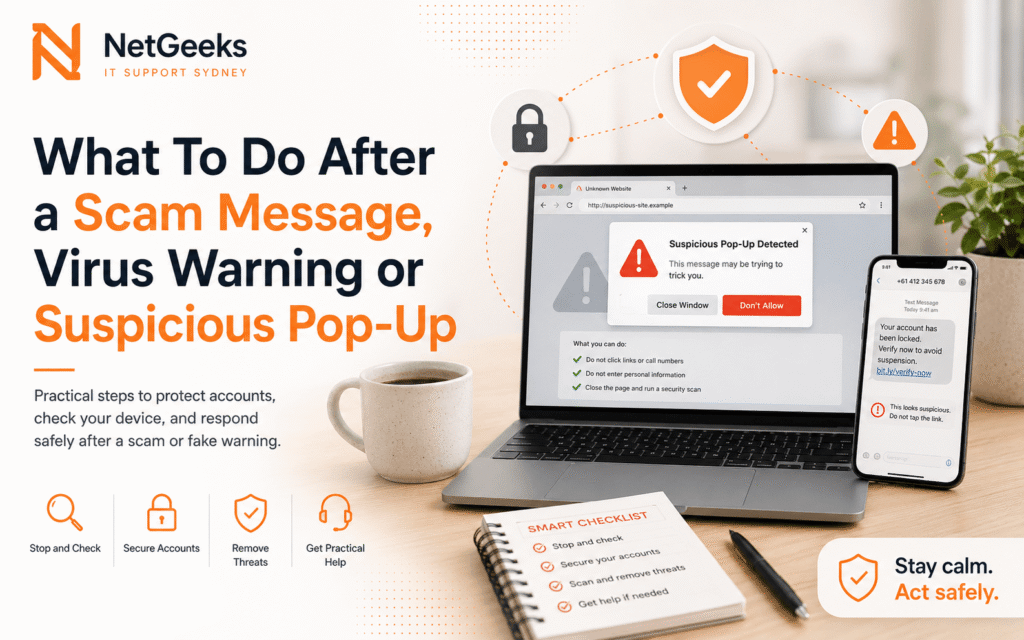
Scam messages and fake virus warnings are designed to create panic. If you clicked a link, called a number or allowed remote access, the safest move is to slow down, protect accounts and get the device checked before using it for sensitive work.
If you would rather get practical help straight away, visit our Privacy and Security page for hands-on support, booking options and common repair questions.
Disconnect and stop sharing information
If someone is remotely connected, disconnect from the internet or shut the device down. Do not provide more passwords, card details or verification codes. Take screenshots or photos of messages if possible, then get advice.
Change important passwords safely
Use a different trusted device to change passwords for email, banking, Apple, Google, Microsoft and social accounts. Start with email because password resets usually go there. Turn on two-step verification where available.
Check the device and browser
Suspicious browser extensions, fake security apps and remote access tools can remain after the first pop-up. A cleanup should include the browser, startup apps, installed programs and account recovery settings.
Know when to call your bank or provider
If payment details were entered or money moved, contact the bank immediately. If business email, customer data or work accounts were involved, involve the business owner or IT contact as soon as possible.
Quick checklist
- Never share verification codes with a caller.
- Change passwords from a trusted device.
- Remove unknown remote access tools.
- Record what happened while details are fresh.
When it makes sense to get help
Worried about a scam or virus warning? NetGeeks can help check the device, explain the risk and guide the next practical steps.
Helpful next steps
You may also find these NetGeeks pages useful if the issue affects more than one device, account or setup area.
Need help with the same issue?
NetGeeks supports homes and small businesses across Sydney with onsite, remote and practical tech help.